 Flashroom
Make & keep
Lift a person from a portrait into a reusable sticker
Copy or save the isolated subject from an iPhone photo without editing the underlying portrait.
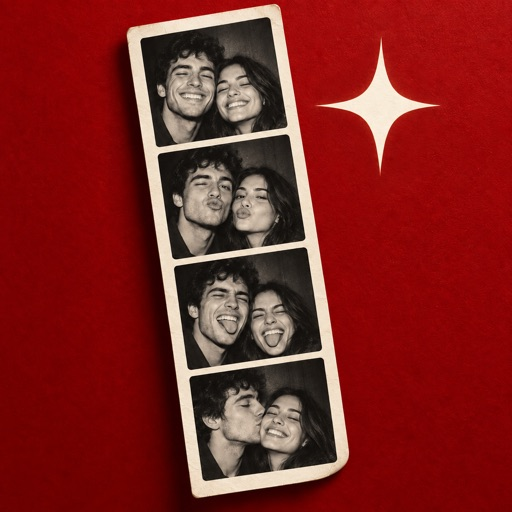
A sticker cutout can make a playful reply from a booth portrait, but it is a derivative graphic rather than a replacement for the full photograph. Photos can isolate a prominent subject and offer copy, share, or Add Sticker actions. Check the outline before using the cutout in a design.
Create the cutout
Open the portrait full-screen and touch and hold the person or other central subject. Wait for the outline and contextual actions. Tap Add Sticker to save it for later use, or Copy / Copy Subject to paste into a note or another app. In a video, pause on the frame first; the selected frame supplies the cutout.
Evidence: Apple user guide
Inspect its edge
If the outline includes a neighboring face, hat, or prop, cancel and try a clearer frame with more separation from the background. The feature identifies a subject automatically, so inspect hair, glasses, hands, and clothing edges before placing the sticker over another image. A cutout may not preserve fine translucent details.
Evidence: Apple user guide
Choose a suitable destination
Keep the source portrait in Photos. A sticker is suited to messages or markup, not as a faithful substitute for an archival image or a high-resolution transparent portrait. If you need a cutout in a layout, paste or share it into a destination that supports transparency, then verify its edge and background there.
Evidence: Apple user guide
Sources & further reading
Sources for the specific facts and product descriptions above. Our worked examples, interpretations and practical suggestions are original editorial guidance.
- Apple iPhone User Guide — Lift a subject from a photo or videoApple user guide